Building shifts
A shift is a block of time people sign up to. Capacity, waitlists, reminders, surveys and quotas are all set per shift, not per event.
Shifts appear grouped by day, in time order, in the middle of the editor.
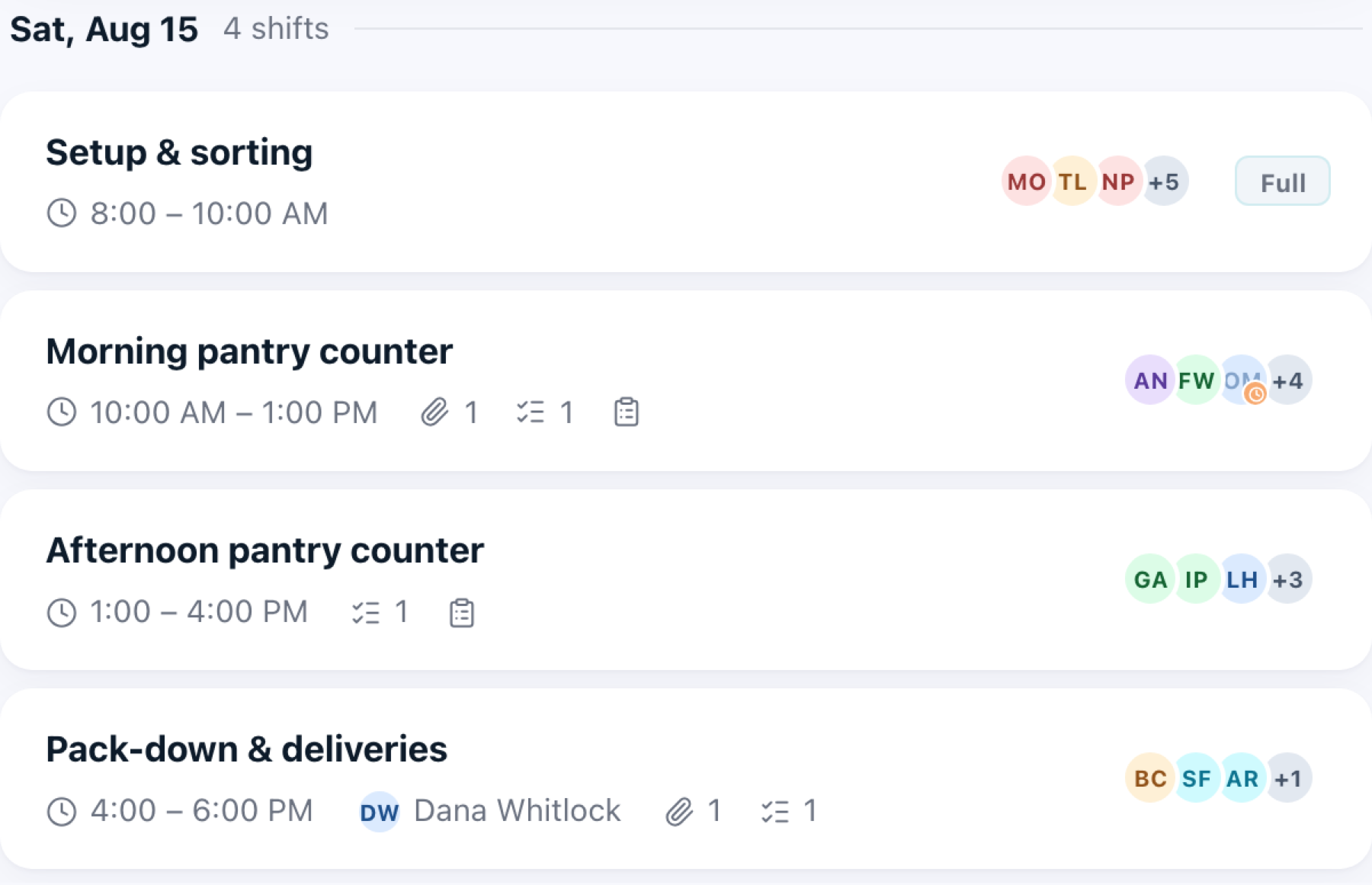
Each row shows the time, who has signed up, the point of contact, and a Full badge at capacity. Small icons mark what the shift carries: a paperclip with the number of files on it, a checklist with the number of quotas it asks registrants to claim from, and a clipboard when registration asks a survey. Hover any of them for the detail; the quota icon names the quotas.
Confirmed volunteers come first in the row of avatars, then anyone still Pending, marked with a clock. Hover an avatar for the name, or +N for how many more there are and how many of those are waiting for approval.
Adding a shift
- Click Add shift below the shift list, or + Add shift in the left nav.
- To control the position, hover between two shifts and insert before or after.
The new shift opens in the editor on the right. There is no save button; changes save as you make them.
Settings are grouped into collapsible sections. Each collapsed section summarises what is set.
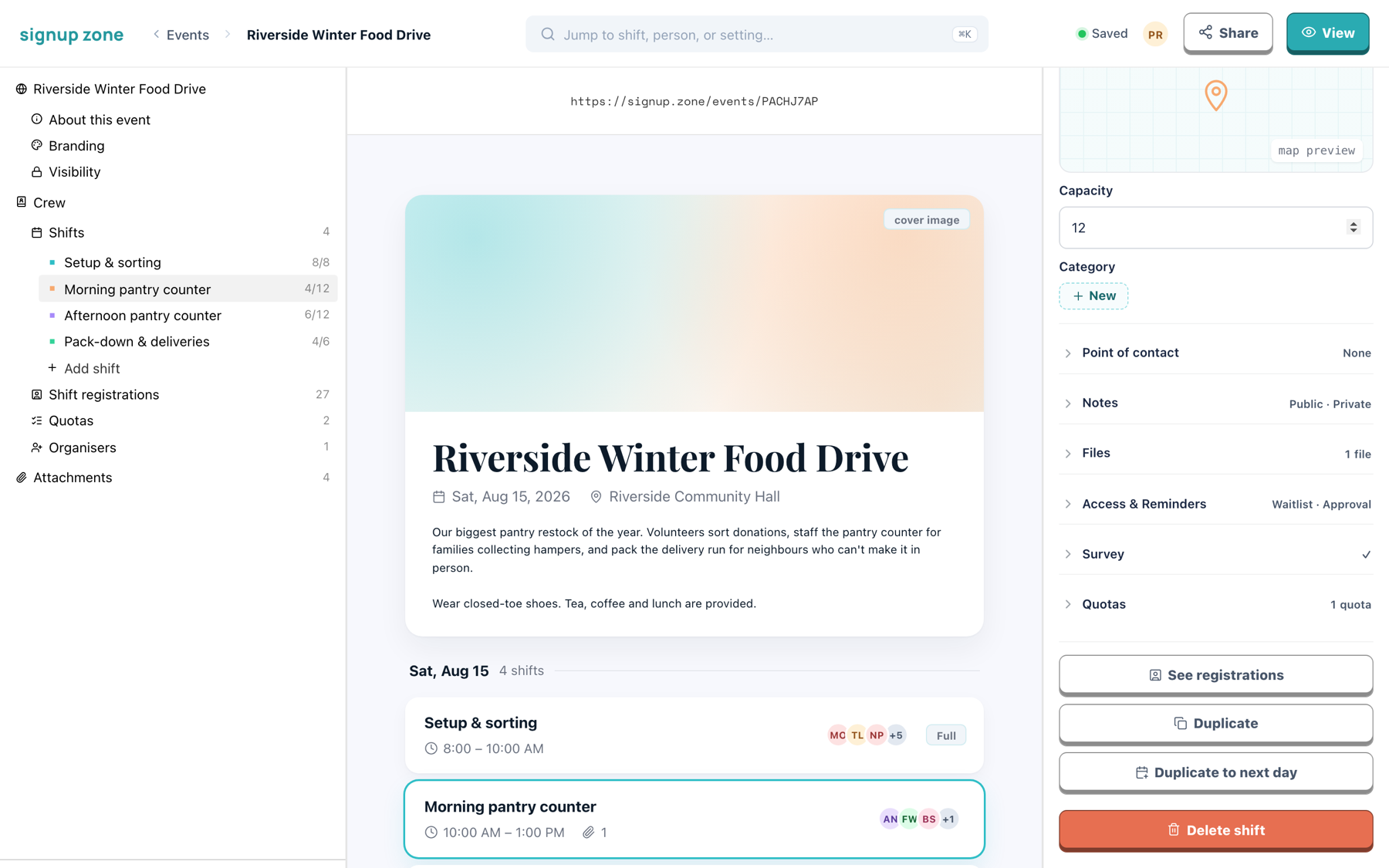
Details
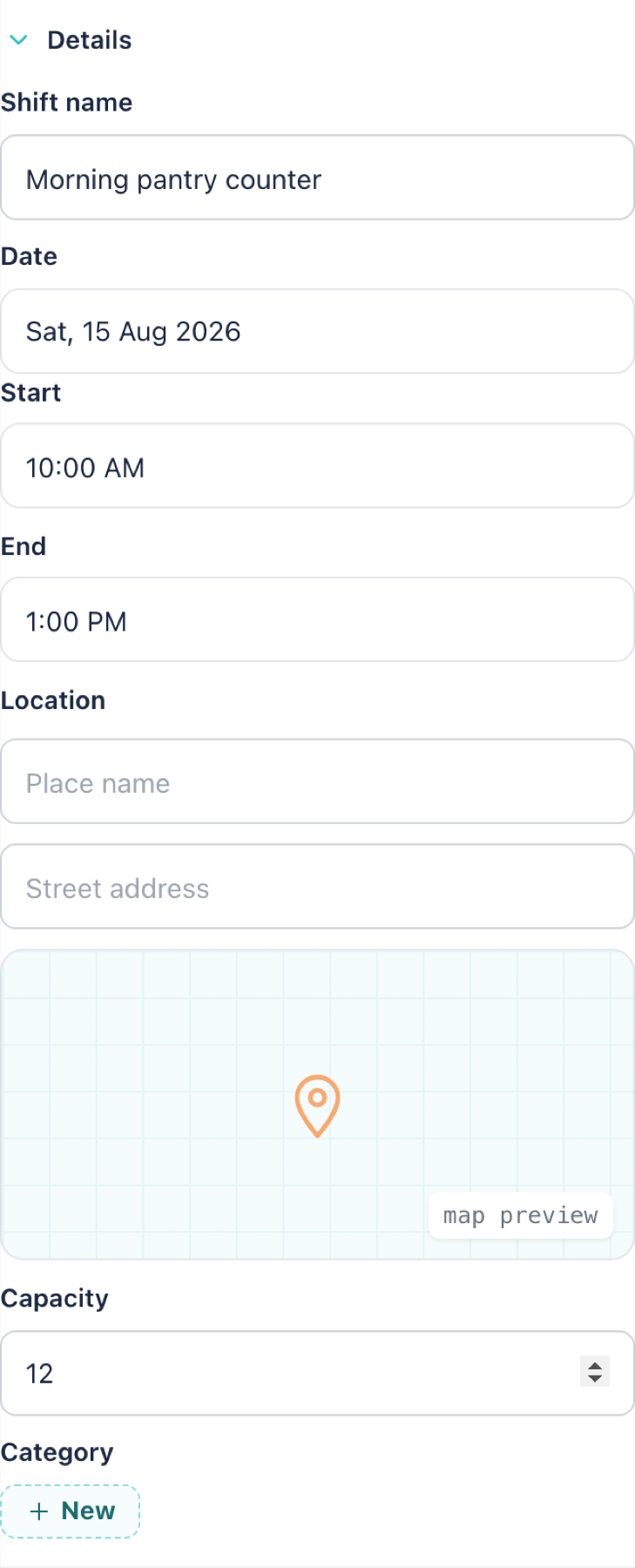
| Field | Notes |
|---|---|
| Shift name | Shown to volunteers. |
| Date, Start, End | In the event's timezone. See Event basics. |
| Location | Leave blank to inherit the event's location. Set it when this shift is elsewhere. |
| Capacity | How many confirmed volunteers fit. At capacity the shift shows Full. |
| Category | Optional label for grouping shifts. |
Point of contact
Available on Professional
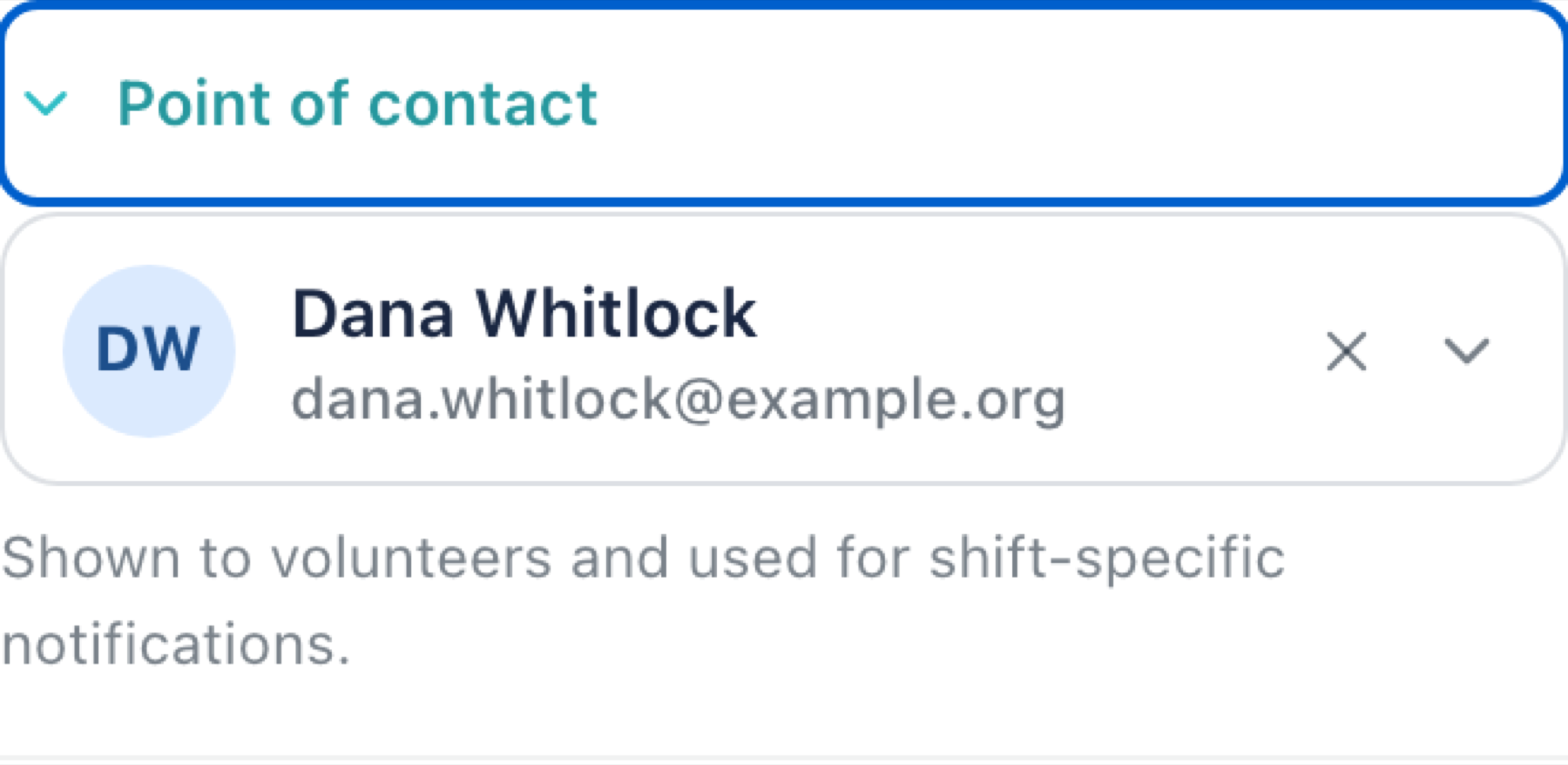
Names the person to ask on the day. Shown on the public shift page and used for shift-specific notifications.
The email address here is also where replies go. When a volunteer replies to a confirmation or reminder about this shift, it reaches this person instead of the unattended sending address. Leave it empty and replies reach the event owner.
Notes
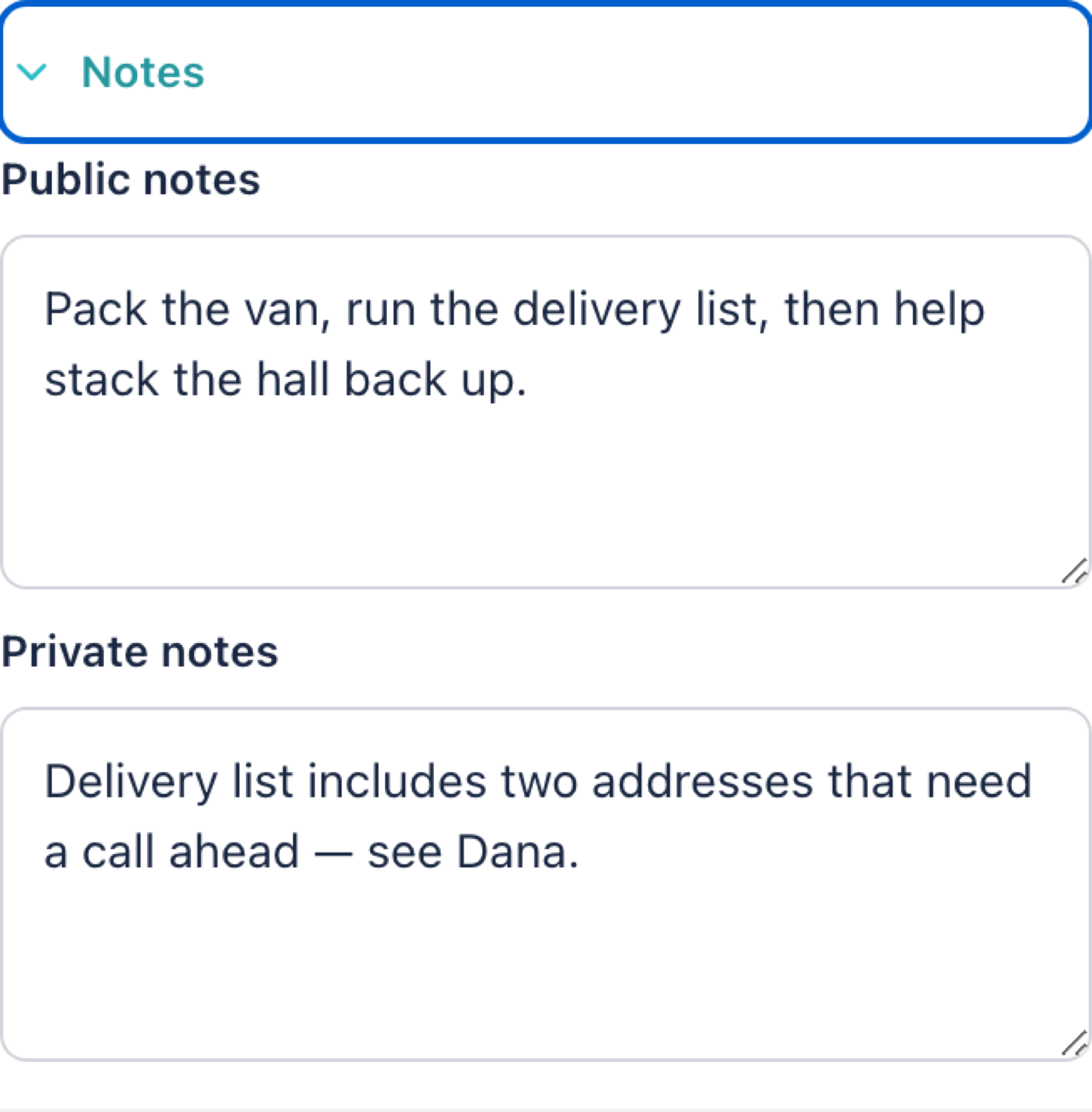
- Public notes — shown on the public shift page before anyone signs up. Use for the job description.
- Private notes — visible only to you and your co-organisers. Available on Professional.
On any other plan the private notes box is hidden and its contents are not shown. They are kept, not deleted: move to Professional and they reappear.
Files
Available on Professional
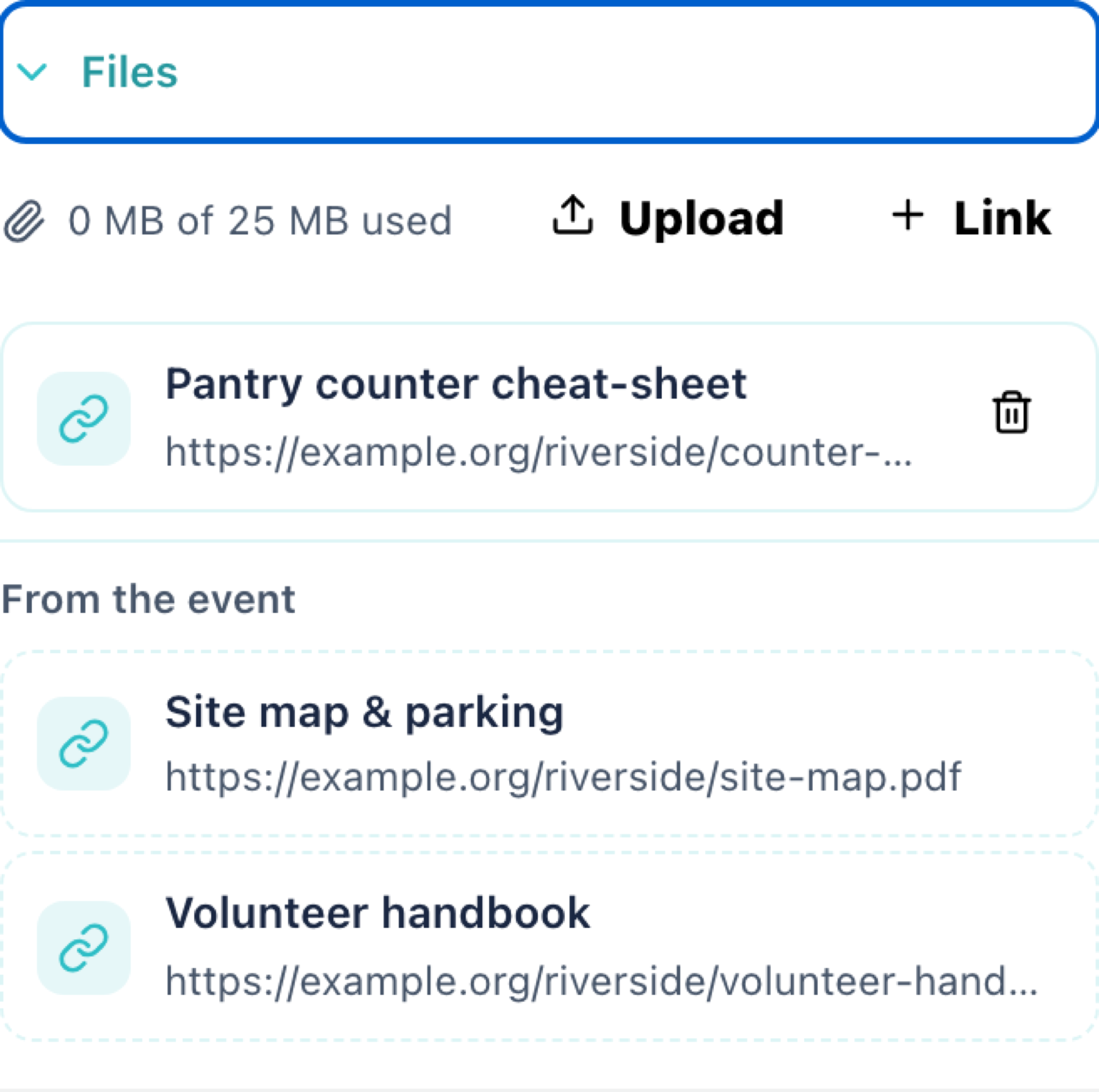
Click Upload to add a file, or Link to add a URL.
Files under From the event are inherited from Attachments and cannot be edited here. Volunteers on this shift receive both sets.
WARNING
The 25 MB figure is the maximum a single email can carry, counting this shift's files plus the inherited ones. Exceed it and files stop being attached to reminders. Links do not count towards it.
Access & Reminders
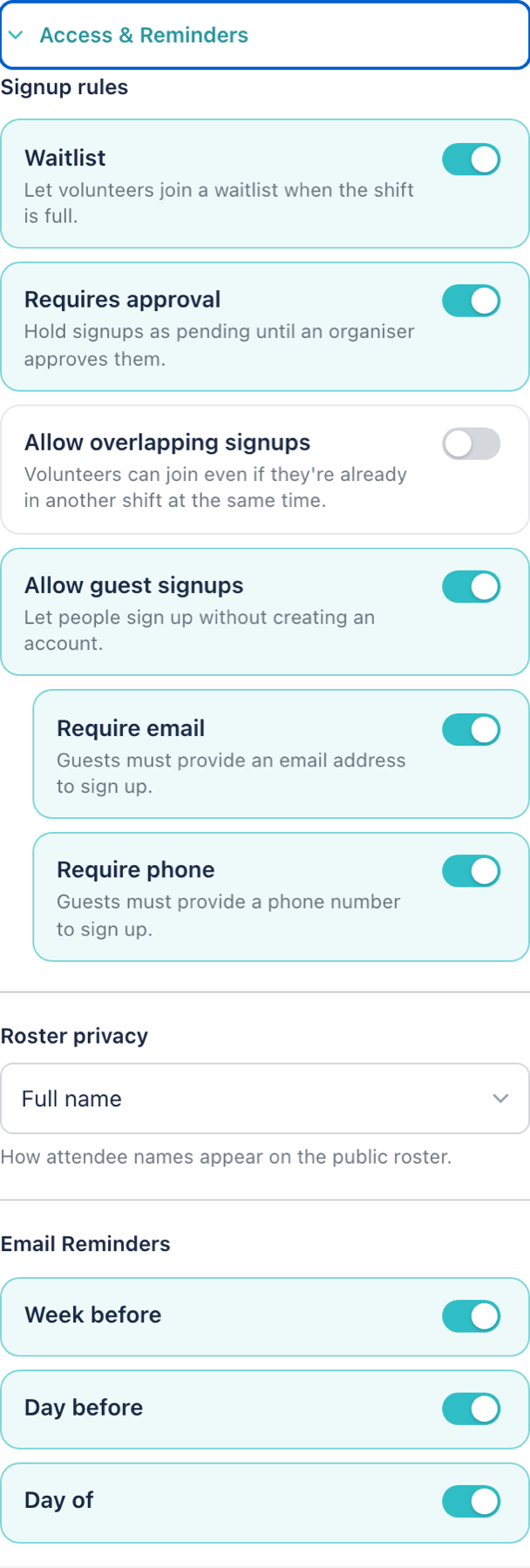
Signup rules
| Setting | What it does |
|---|---|
| Waitlist | Lets volunteers queue once the shift is full. The next person is promoted automatically when a place frees up. Available on Basic and Professional. |
| Requires approval | Holds signups as Pending. A pending volunteer does not hold a place and does not count towards quota targets until you approve them. They see Awaiting approval on the shift, and can withdraw with Remove request. Available on Professional. |
| Allow overlapping signups | Lets volunteers join this shift even if it clashes with another they are on. |
| Allow guest signups | Lets people sign up without an account. Require email and Require phone set what a guest must provide. Available on Basic and Professional. |
Roster privacy
Sets how attendee names appear on the public shift page:
- Full name
- Initials — "BC" rather than "Bernadette Cruz"
- Anonymous — a count only
Names are always shown in Registrations regardless of this setting.
Email reminders
Available on Basic and Professional
Sends automatic reminders to confirmed volunteers a week before, the day before, and on the day. Toggle each one separately. The shift's files are attached to them. Replies go to the shift's point of contact, or to the event owner when there is none.
Survey
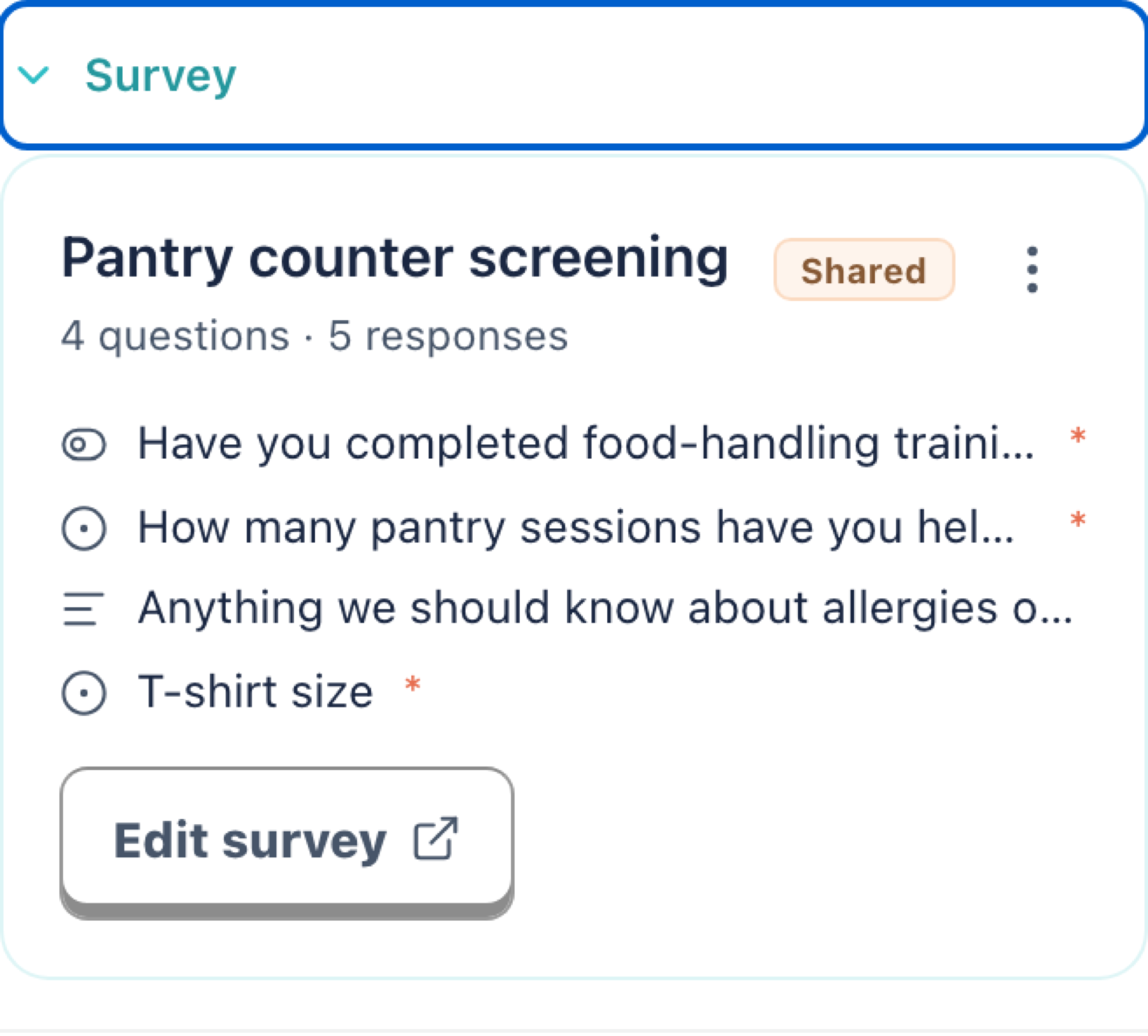
Link a survey to ask questions during signup. The section lists the questions and response count; Edit survey opens the survey editor.
One survey can be linked to several shifts, and shows a Shared badge when it is. Answers appear in Registrations and in the CSV export.
Use the ⋯ menu to reuse another shift's survey here, or to Unlink survey. Unlinking asks you to confirm:
- Used by another shift: unlinking only stops it being asked on this shift.
- Used by nothing else: choose Keep survey to leave it in your surveys list, or Delete survey to discard it and its responses.
Quotas
Available on Professional
Asks volunteers to claim from a counted list. See Quotas.
Duplicating and deleting
The same actions sit in two places: the ⋯ menu on a shift in the left nav, and the buttons at the bottom of the shift panel.
- See registrations — opens Registrations on this shift's card, with its roster in the sidebar
- QR code — a scannable link to this shift, and a printable poster. See QR codes. Available on Professional.
- Duplicate — copy on the same day
- Duplicate to next day — copy dated tomorrow, for building multi-day events
- Delete shift — removes the shift and its registrations
Duplicate and delete ask you to confirm. A copy carries the shift's settings but not its registrations, and not its linked survey.
Related
- Event basics — dates, timezone and location
- Managing registrations — who signed up
- Quotas