Visibility & access
Controls who can see the event and who can join it.
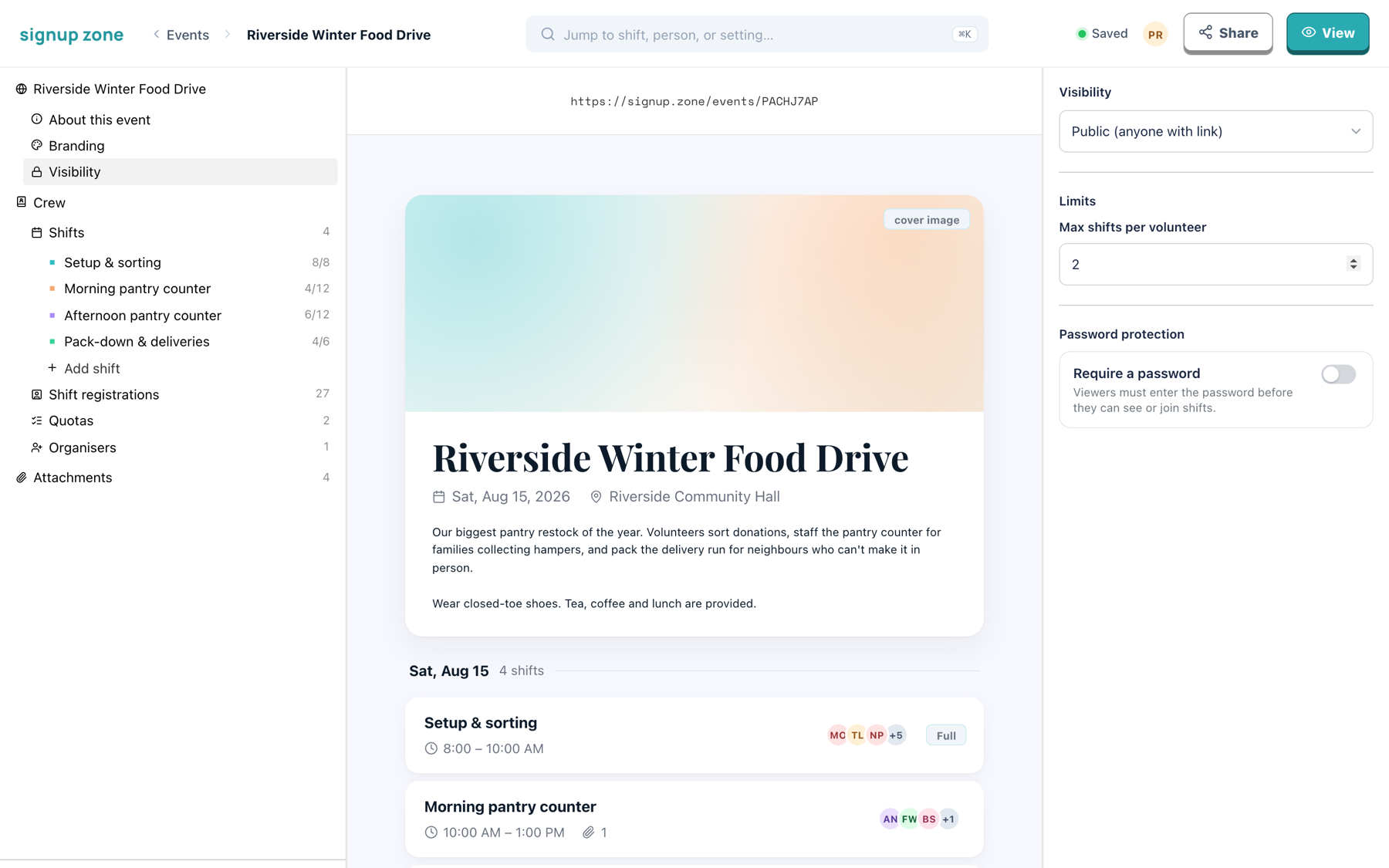
Visibility modes
| Mode | Who can get in |
|---|---|
| Public (anyone with link) | Anyone with the link. |
| Private (invite code) | Anyone with the invite code. |
| Organisation-only | Accounts belonging to the organisation you name. |
Changing mode takes effect immediately.
Private (invite code)
Available on Basic and Professional
Select Private to reveal the invite-code field. Type a code or click Generate. Volunteers must enter it before they can see the shifts.
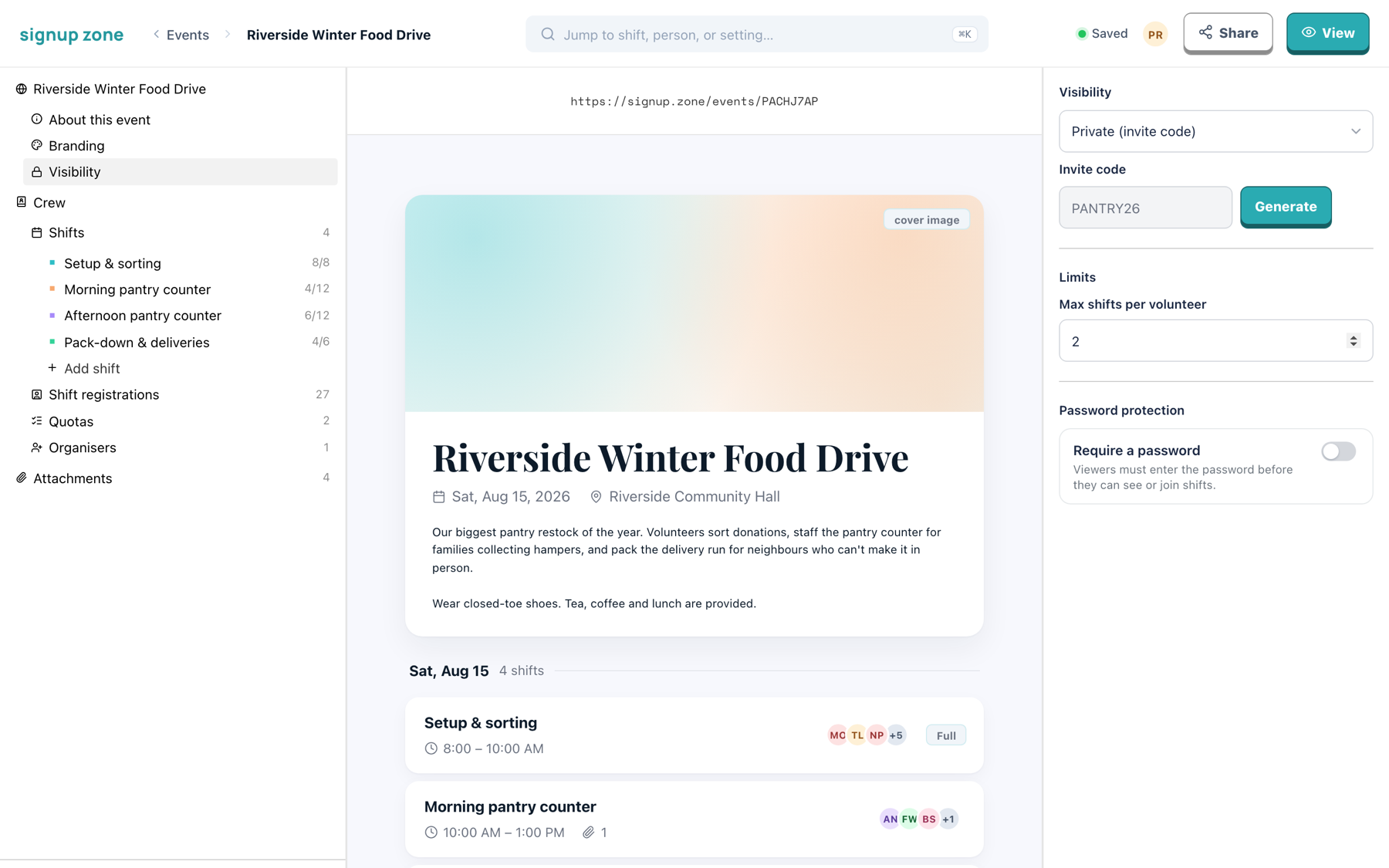
Send the code separately from the link.
Organisation-only
Available on Basic and Professional
Name an organisation to limit the event to accounts belonging to it. Use an invite code instead if your volunteers are members of the public.
Password protection
Available on Basic and Professional
Turn on Require a password to add a password prompt. It works alongside any visibility mode, and viewers must enter it before they can see or join shifts.
An invite code and a password are separate gates: the code controls Private visibility, the password can be added to any mode. You can use either, both or neither.
Max shifts per volunteer
Sets how many shifts one person can join across the event. Leave blank for no limit.
It counts confirmed places only, so a waitlisted signup does not use up a volunteer's allowance.
Testing access
WARNING
The editor preview shows the event as the owner. Open the public link in a private/incognito window to check the gate volunteers will meet.
Change one setting at a time and re-test after each change.
Related
- Branding — the custom URL
- Event lifecycle — publishing