Managing registrations
Shift registrations lists everyone signed up across every shift. Use it to check attendance, read survey answers, export a list, and email volunteers.
Views
Two views of the same registrations. Switch with By shift / All registrations beside the heading. Your choice is remembered.
By shift
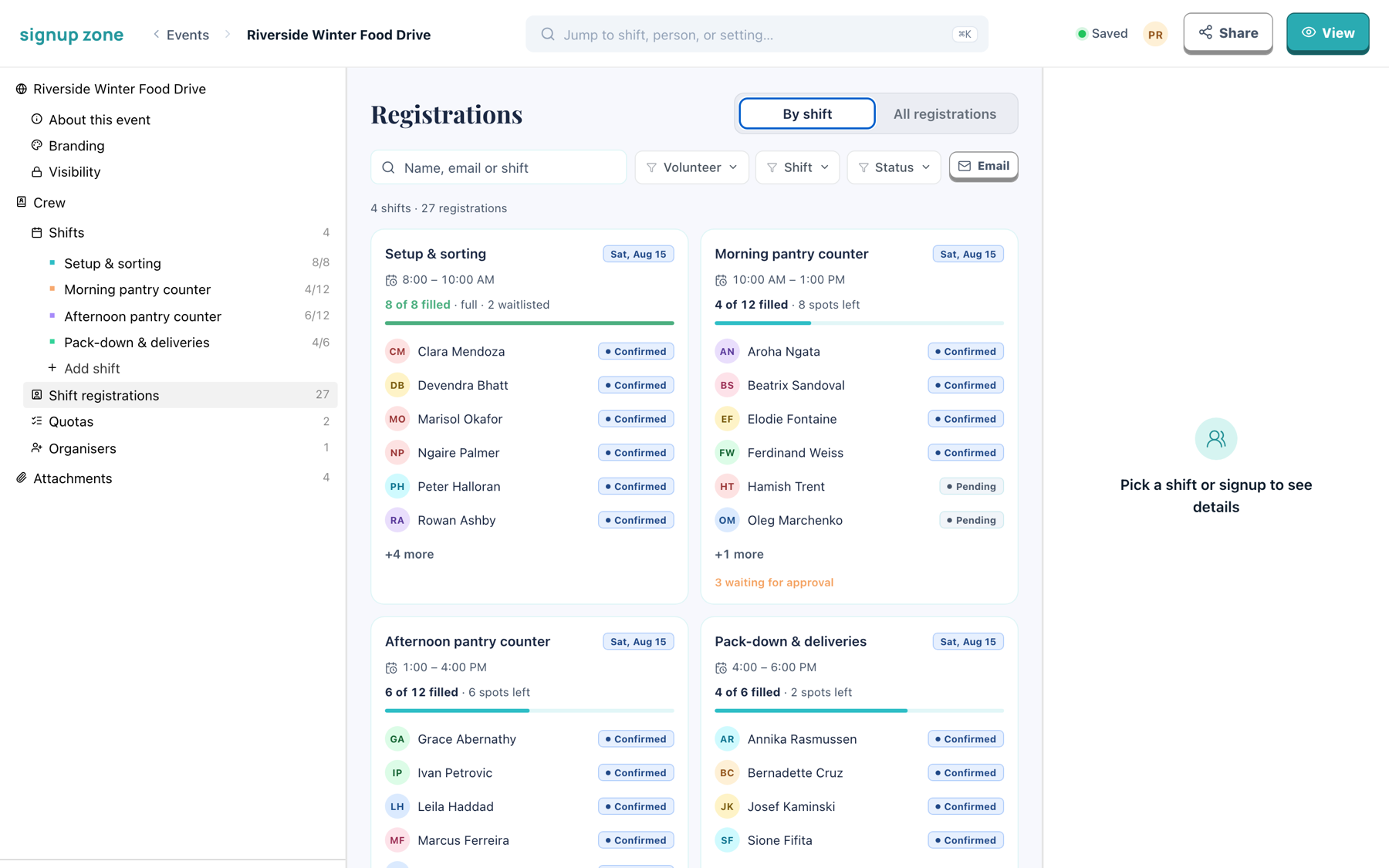
Every shift gets a card, in start order. Each card shows:
- How full it is, as a bar against the shift's capacity, with the spots left beside it
- Who is registered: the first six, with their status, then a count of any others
- What needs attention, when something does: people waiting for approval, a shift over capacity, or a waitlist that could be promoted into free spots
A shift nobody has joined still gets a card, reading No one has signed up yet. The table cannot show these, because an empty shift has no rows.
Click a card to open that shift in the panel. Click it again to close.
See registrations on a shift, from its ⋯ menu or the bottom of its editor, opens this view with that shift's card selected and its panel already open. It shows the cards whichever view you last used, and does not change what is remembered.
The shift panel
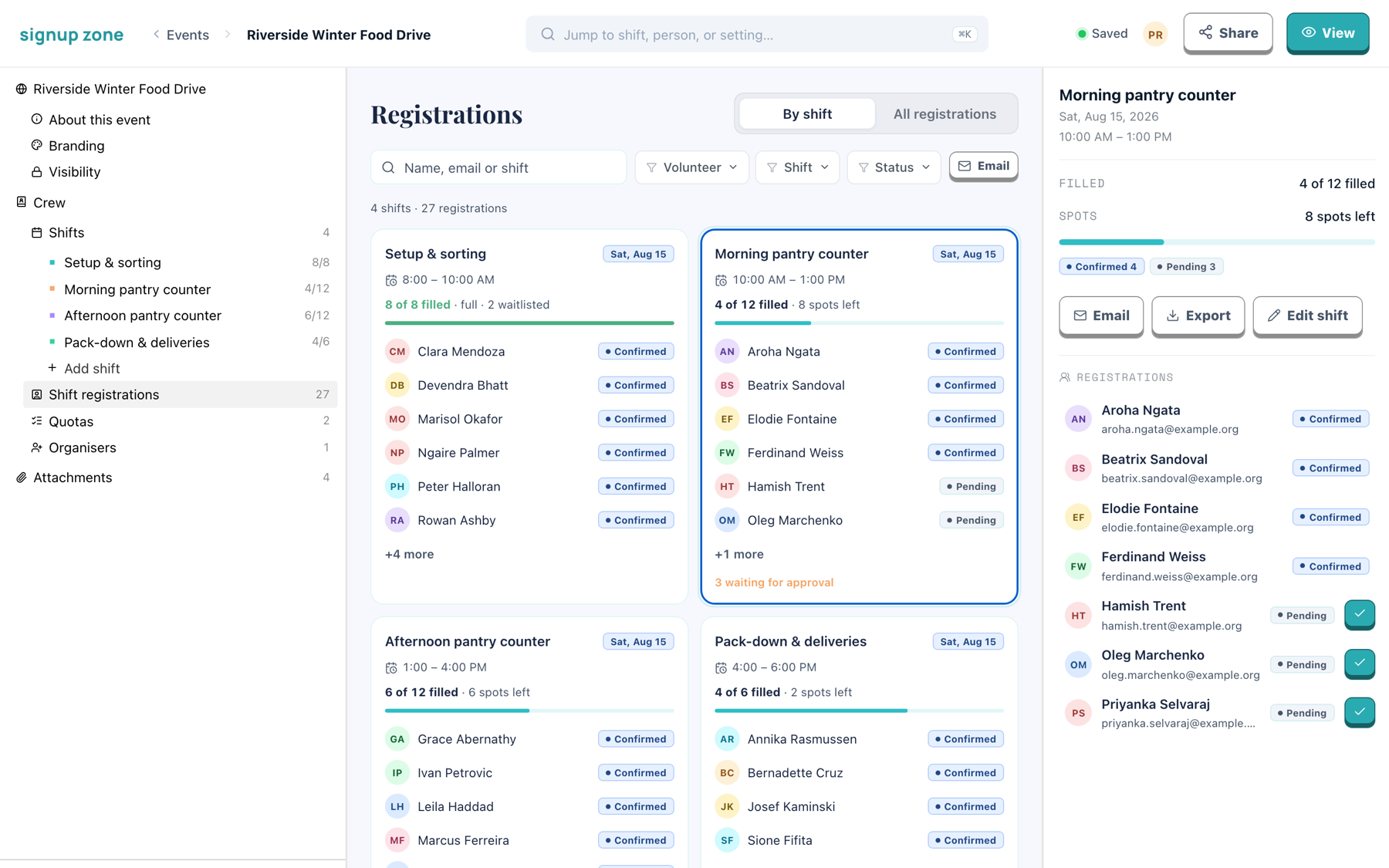
The panel carries what the card leaves out:
- The date and full times
- A breakdown by status, and the capacity meter
- The complete roster, however long. The card shows six; this shows everyone
- Email, Export and Edit shift
Email and Export here act on that shift alone, not the whole event. The export downloads as registrations-<shift name>.csv.
Anyone in the roster with a Pending status has a tick button beside them. Click it to approve that person without leaving the shift. See Approving a pending registration.
Click anyone in the roster to open their registration details, then use the shift name at the top of the panel to come back.
All registrations
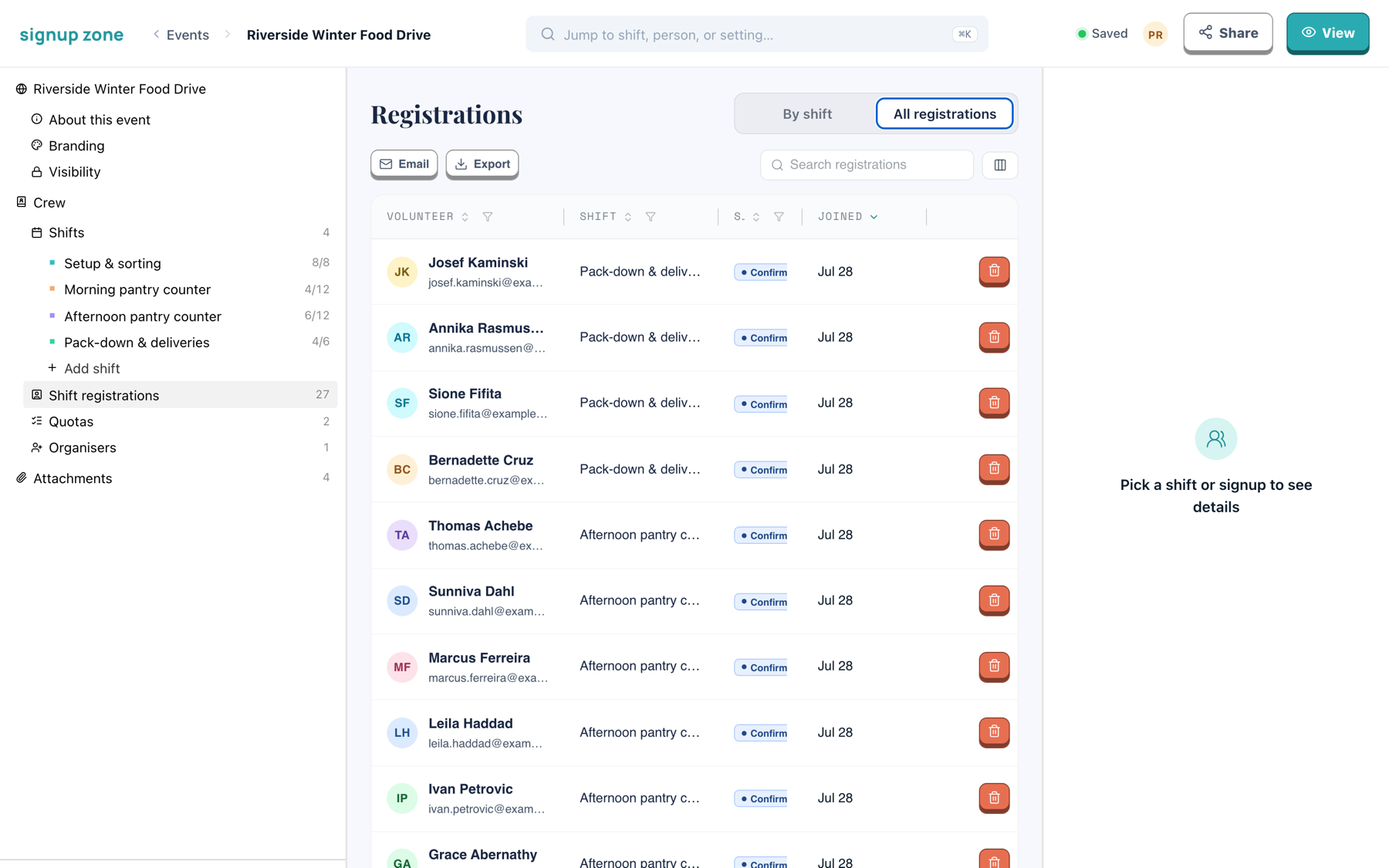
One row per registration, with sortable columns and a filter on each. Use it to sort by join date, or to find one person across every shift.
Statuses
Each registration has one status. Event totals are shown bottom-right.
| Status | Meaning | Set when |
|---|---|---|
| Confirmed | Holds a place. | Someone signs up to a shift with room. |
| Waitlist | Queued for a place. | The shift is full and has Waitlist enabled. Promoted automatically when a place frees up. |
| Pending | Awaiting approval. | The shift has Requires approval enabled. Cleared when an organiser approves them. |
| Cancelled | Withdrawn or removed. | The volunteer cancels, or an organiser removes them. |
| Completed | The shift has finished. | The shift is in the past. |
WARNING
Only Confirmed registrations count towards capacity and quota targets. Waitlisted and pending claims are recorded but not counted.
Filtering and search
Search matches name, email address or shift title. Both views share it: what you type in one applies to the other.
Three filters combine with each other and with the search:
- Volunteer — filters to one or more people.
- Shift — filters to one or more shifts.
- Status — filters to one or more statuses.
Both views share these, and you can set them from either. In All registrations, click the funnel on a column header. In By shift, click the buttons beside the search box; each one carries the name of whatever it is filtering to. Clear filters resets every filter and the search.
Sort on any column header in All registrations.
In By shift, filtering by volunteer or status narrows who each card lists. It does not change how full the card says the shift is: the bar, the count and the waitlist total always describe the whole shift. A shift left with nobody to list drops out of the grid.
Filtering by Shift picks cards instead, so a shift you name stays on screen even when nobody has signed up to it.
WARNING
Email, and Export on All registrations, act on the rows currently shown, not the whole event. Check the filters before using either. Inside a shift panel both act on that shift alone.
Registration details
Click a row in All registrations, or anyone in the shift panel's roster in By shift.
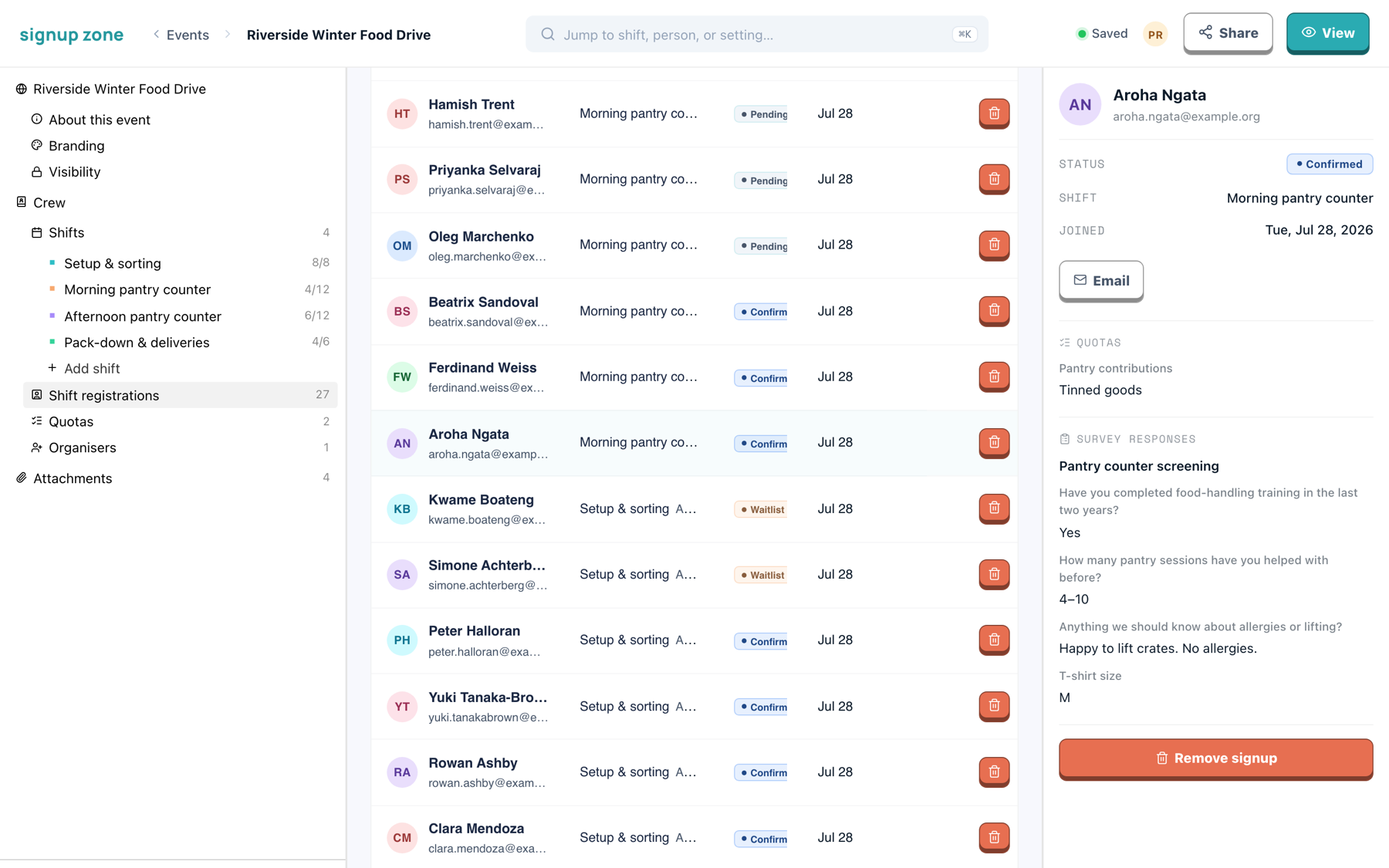
The panel shows:
- Status, shift and join date, with an Email button for that person
- Approve, on a Pending registration only
- Quotas — the option they claimed
- Survey responses — their answers, question by question
- Remove signup
Approving a pending registration
Registrations on a shift with Requires approval enabled arrive as Pending. A pending volunteer does not hold a place and does not count towards quota targets until you approve them.
Approve from any of three places:
- The tick button on a row in All registrations
- The tick button beside a pending name in a shift panel's roster
- Approve in the registration detail panel
There is no confirmation step. What happens next depends on the shift:
| The shift | Result |
|---|---|
| Has room | The registration becomes Confirmed, and the volunteer is emailed a confirmation. Emails are available on Basic and Professional. |
| Is full, with Waitlist enabled | The registration becomes Waitlist, and is promoted automatically when a place frees up. |
| Is full, without a waitlist | Nothing changes. The registration stays Pending. |
Approval also fails if the volunteer already holds a place on a shift that clashes with this one, unless the shift has Allow overlapping signups enabled. The registration stays Pending either way, so you can approve it again once you have made room.
To turn down a pending registration, remove it.
Removing a registration
Click the red bin button on a row in All registrations, or Remove signup in the detail panel, then confirm.
Removing a registration:
- releases their place
- releases any quota option they claimed
- promotes the next waitlisted volunteer, if the shift has a waitlist
- cancels their scheduled reminder emails
Exporting to CSV
Click Export on All registrations to download registrations.csv for the rows currently shown. By shift has no export of its own: a shift panel's Export downloads registrations-<shift name>.csv for that shift alone.
| Columns | Contents |
|---|---|
Name, Email | The volunteer |
Shift, Start, End | The shift |
Status | The registration status |
| One per quota | The option that person claimed |
| One per survey question | Their answer |
Survey columns are blank where the question's survey is not linked to that volunteer's shift. Answers from an anonymised survey export as Anonymous.
Emailing volunteers
Click Email to open your mail client with the filtered volunteers in Bcc and a subject of "<Event name> Update". From a shift panel it takes that shift's people only, and the subject names the shift.
- Recipients are deduplicated across shifts.
- Volunteers without an email address are skipped, so the count can be lower than the row count.
- Nothing is sent until you send it from your mail client.
Related
- Building shifts — capacity, waitlists and approval
- Quotas — the claims shown per registration