Organisers
Available on Basic and Professional
Organisers can edit the event alongside you, including shifts, registrations and private notes.
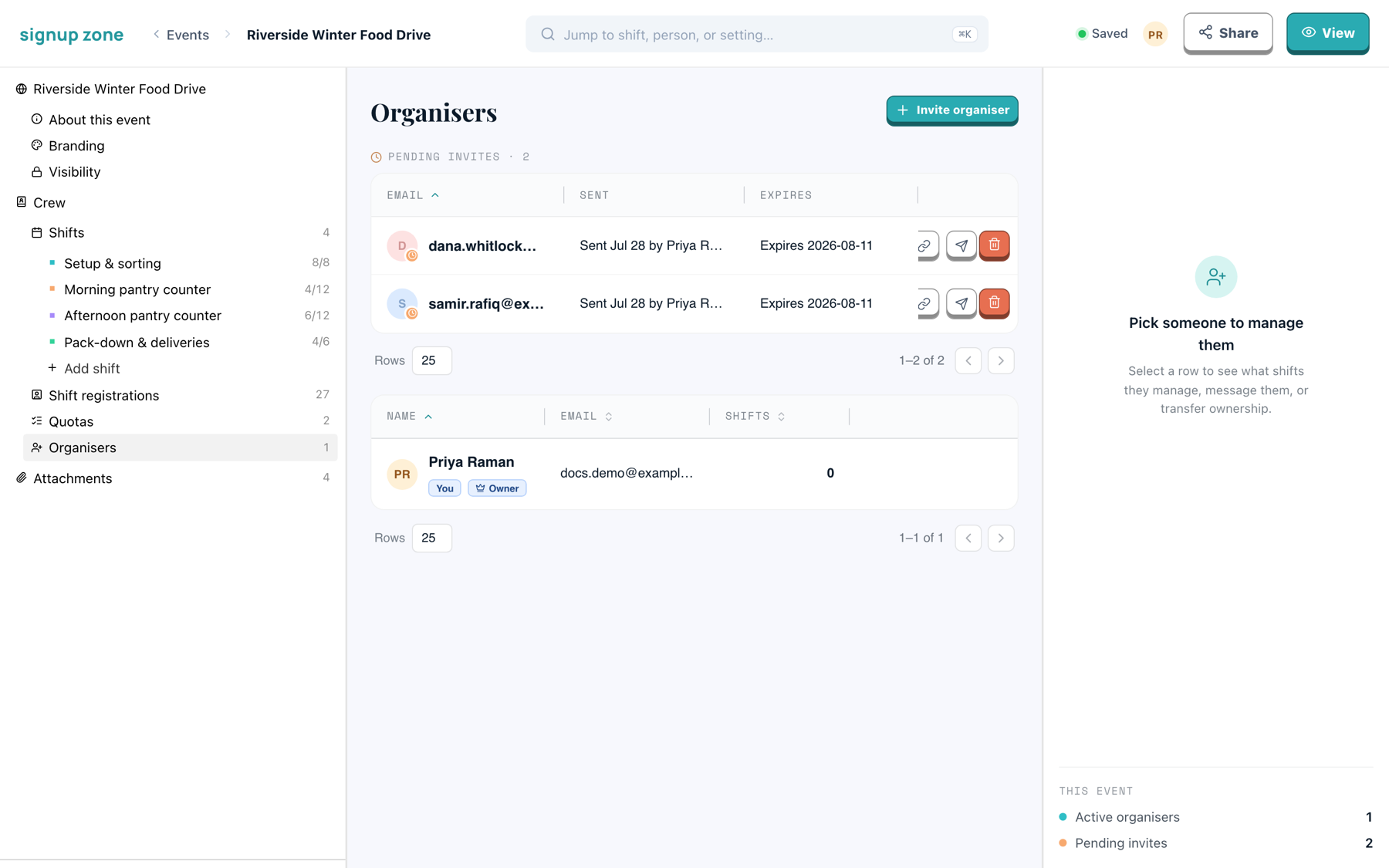
Inviting someone
- Go to Organisers in the left nav.
- Click Invite organiser.
- Enter one or more email addresses.
Each address gets its own invite link by email. Invitees appear under Pending invites until they accept.
Managing pending invites
Invites expire 14 days after they are sent. Each row has three actions:
| Action | What it does |
|---|---|
| Copy link | Copies that invite link so you can send it yourself. |
| Resend | Sends the invitation email again. |
| Revoke | Cancels the invite immediately. |
WARNING
An invite works once, and only for the address it was sent to. The recipient must be signed in with that email address to accept it.
Existing organisers
Accepted organisers appear in the lower table.
- You and Owner badges mark who is who. Each event has one owner.
- The Shifts column counts shifts where that person is the point of contact.
- Select a row to open the panel on the right, where you can message them and reach the actions below.
Your plan sets how many organisers an event can have. If the owner's plan drops below the number already on the event, the organisers added first keep editing and the rest become View only: they still see the event, its registrations and its private notes, but cannot change anything. Upgrading restores their access.
Transfer ownership
Makes another organiser the owner; you remain an organiser. Confirm when prompted.
Ownership determines whose plan the event's limits are checked against.
Remove an organiser
Removes their access to the event. It does not delete their work, and does not clear them as a point of contact; reassign those shifts separately.
Related
- Working together — editing at the same time