Quotas
Available on Professional
A quota is a list of options with a target number against each. Volunteers claim an option when they register, and Signup Zone counts the claims.
Use a quota when you need a count, such as "24 tins, 12 bags of fresh produce, 8 lots of toiletries". Use a survey when you only need to ask a question: survey answers cannot be counted or released.
Creating a quota
- Open a shift and expand Quotas.
- Click Add another quota, or pick an existing one under Or use one already on this event.
- Name it, set Counted across, then add options.
Quotas belong to the event, not the shift. Once created, any shift can use it.
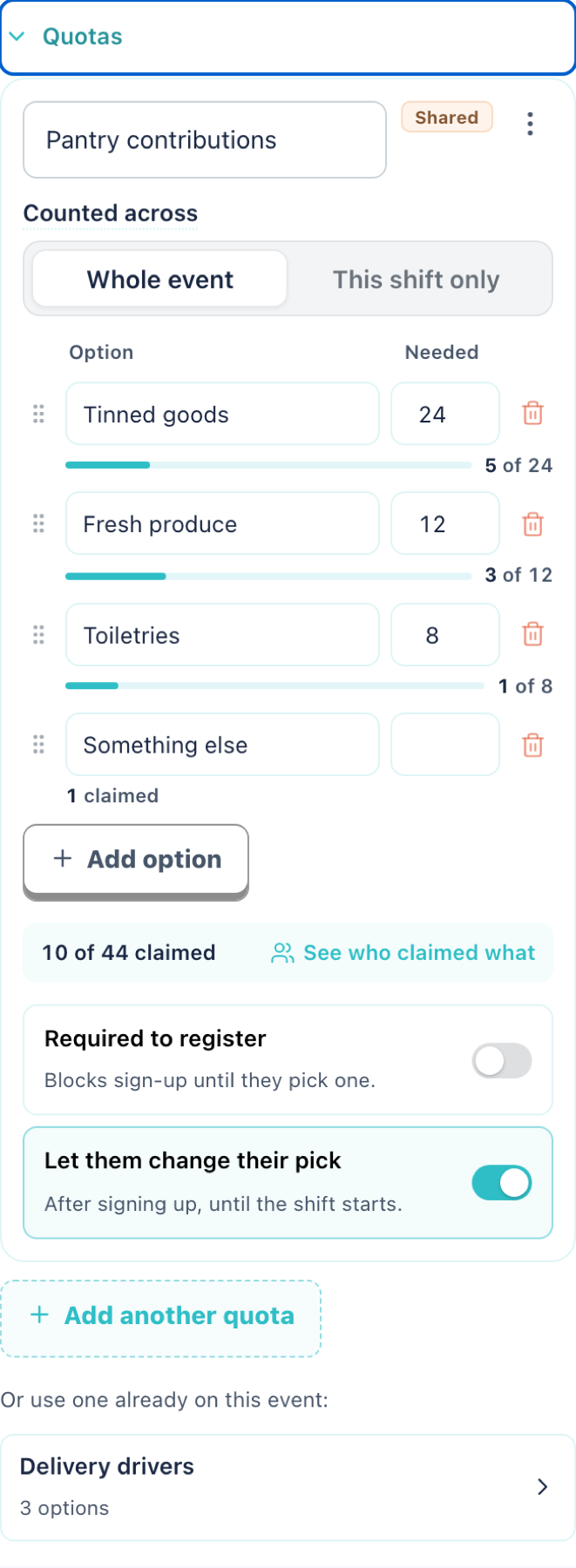
Counted across
| Setting | What it counts | Use for |
|---|---|---|
| Whole event | Claims on every shift using this quota, added together. | Totals for the whole event, such as "24 tins for the drive". |
| This shift only | Each shift counts separately. | Per-shift needs, such as "2 drivers on every run". |
A quota used by more than one shift shows a Shared badge.
Options and targets
Give each option a label and a Needed number.
- With a number — the option fills up, shown as a progress bar and a "5 of 24" count.
- Blank — unlimited. It never fills, is never greyed out, and is excluded from the event total. In the example above the total reads 10 of 44 (24 + 12 + 8), because "Something else" is unlimited.
Drag the handle to reorder options. Renaming an option keeps its existing claims.
A full option is greyed out for volunteers but does not block them. Two simultaneous claims can take an option one over its target.
Which claims count
Only Confirmed registrations count towards a target.
Pending and waitlisted claims are recorded and listed with a Pending badge, but are not counted. Cancelling a registration releases its claim.
Required and changeable picks
- Required to register — blocks signup until the volunteer picks an option.
- Let them change their pick — lets them swap their choice up until the shift starts.
Viewing claims
Open Quotas in the left nav to see every quota with live counts.
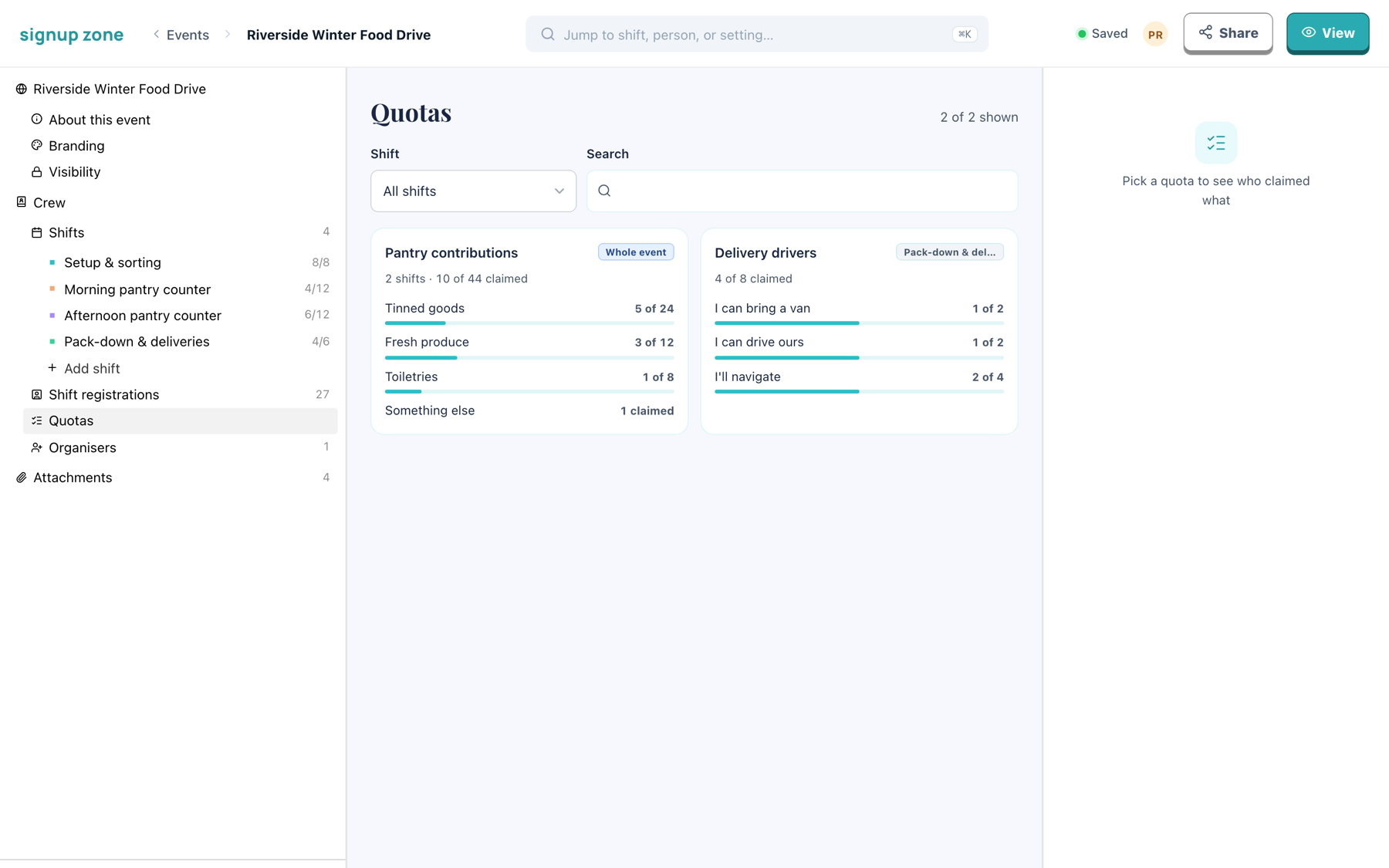
Click a card to list the people behind the numbers.
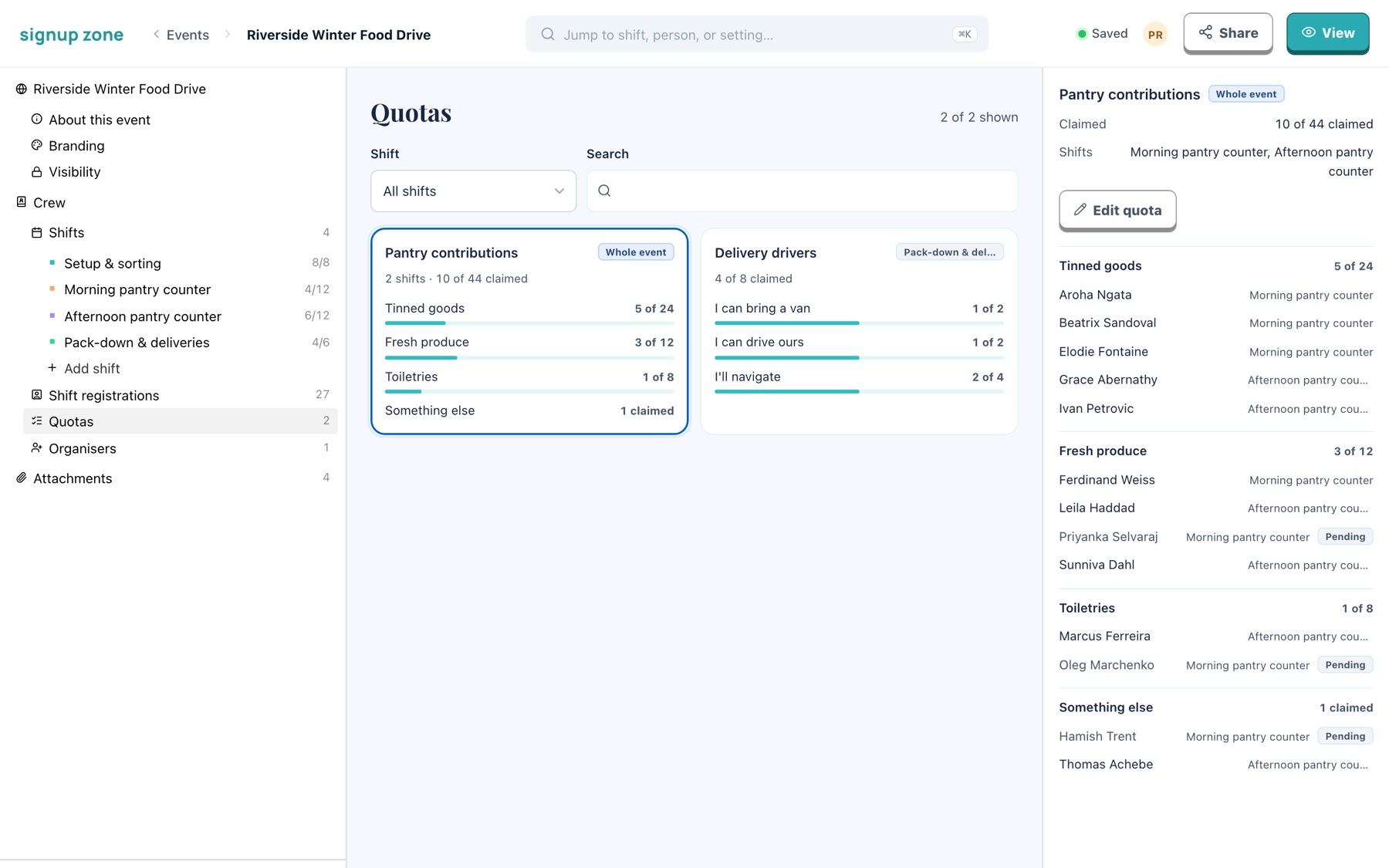
From here you can:
- filter to one shift, or search
- see which shifts use the quota, or Whole event for a shared one
- read claimants grouped by option, with their shift and status
- click Edit quota to change targets
The same list is available inside a shift via See who claimed what, and claims are included in the registrations CSV export.
Example
The Riverside Winter Food Drive uses two quotas:
Pantry contributions: whole event, not required, changes allowed. Tinned goods (24), Fresh produce (12), Toiletries (8), Something else (unlimited). Both counter shifts use it, so claims from either contribute to one tally of 44.
Delivery drivers: this shift only, required, changes not allowed. I can bring a van (2), I can drive ours (2), I'll navigate (4). Only the pack-down shift uses it. A second delivery run would need its own two drivers.
Related
- Building shifts — attaching a quota to a shift
- Managing registrations — claims per person