Conditional questions
Available on Professional
Show a question only when earlier answers match. Respondents skip what does not apply to them, and you stop collecting answers you have to ignore.
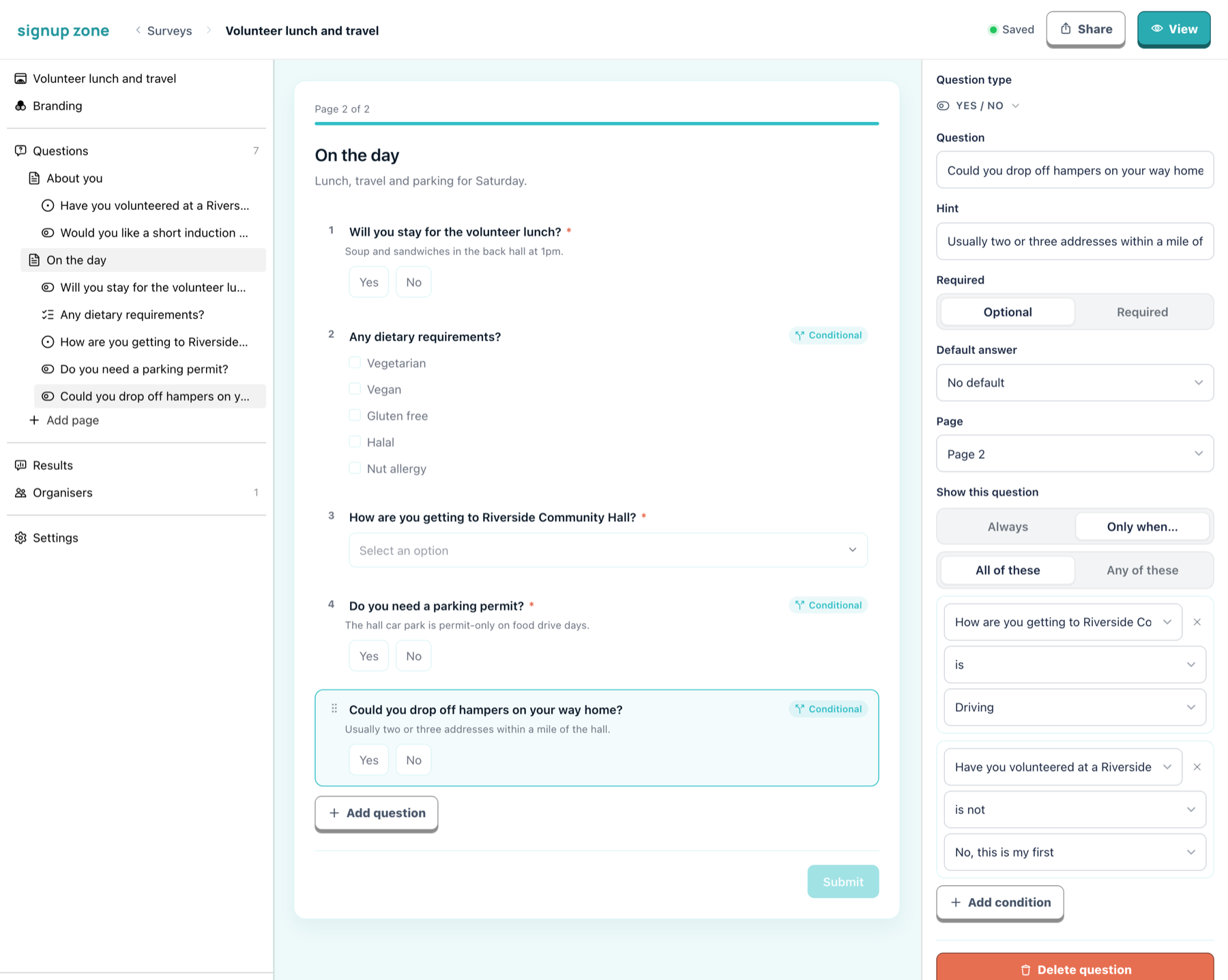
Adding a condition
- Open the survey in the editor and select the question to show conditionally.
- Under Show this question, choose Only when….
- Pick an earlier question, how to compare it, and the answer to compare against.
The question now shows a Conditional badge in the editor. Changes save as you go.
A condition can only use a question that comes before it in the survey, on the same page or an earlier one. The first question of a survey is always shown.
Combining conditions
- Click Add condition under the existing condition.
- Choose how the conditions combine:
- All of these — shows the question only when every condition matches.
- Any of these — shows the question when at least one matches.
To remove a condition, click × beside it. To remove them all, choose Always.
What a condition can check
| Earlier question | Comparisons |
|---|---|
| Yes / No, Select one | is, is not |
| Select many | includes, doesn't include |
| Number, Rating | is, is not, is less than, is more than |
| Any question | is answered, is not answered |
Every comparison except is answered and is not answered needs the earlier question answered first. "Is not Driving" stays hidden until the respondent picks a way to travel.
What respondents see
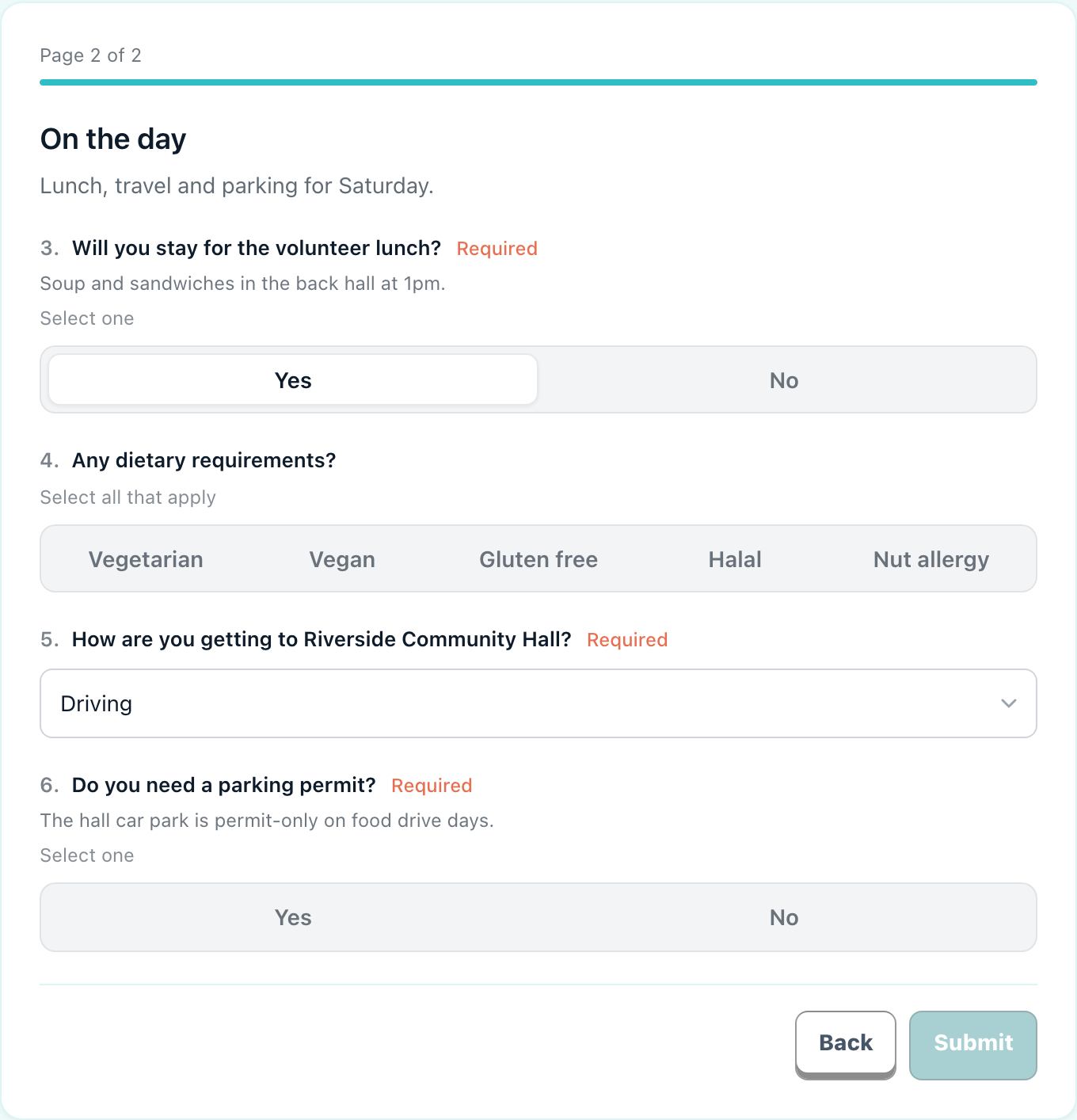
- Questions appear and disappear as respondents answer. Numbering skips hidden questions.
- A hidden question is never required, even if you marked it Required.
- If a respondent answers a question and then changes an earlier answer that hides it, that answer is discarded when they submit. Results only include questions people saw.
- If a question that controls another is itself hidden, the one depending on it is hidden too.
- On a survey with several pages, a page whose questions are all hidden is skipped.
This applies everywhere the survey is answered: its own page, a signup sheet that asks it, and signup to a shift that asks a survey.
When the earlier question changes
A condition stops applying, and the question shows to everyone, when:
- the question it uses is deleted,
- that question is moved below the conditional one, or
- the answer it compares against is renamed or removed from the options.
Check the Conditional badges after reordering or editing options.
Changing plan
Conditions you set up keep working if your plan changes. You can still remove them, but adding or changing a condition needs Professional.