Building a survey
A survey asks people a set of questions and collects their answers in one place. Share it on its own link, or ask it when someone signs up to a shift or a signup sheet.
Creating a survey
- Go to Surveys.
- Click Create Survey. The new survey opens in the editor with one blank question.
- Click the survey's name at the top of the left nav to set its Name and Description.
To start from an existing survey instead, see Duplicating a survey. To ask a survey during shift signup, see Building shifts.
The editor
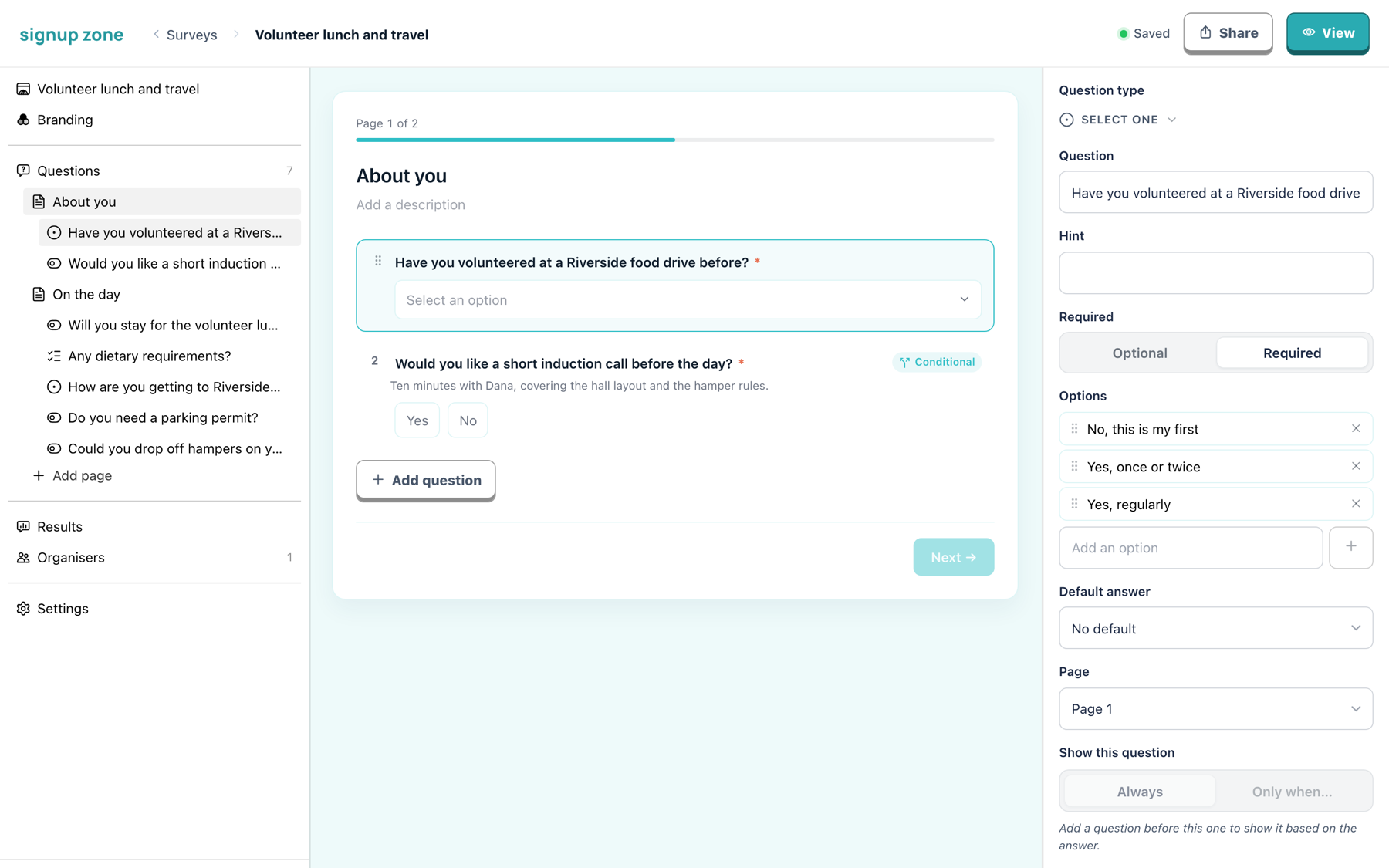
The left nav holds every part of the survey:
| Item | What it does |
|---|---|
| The survey's name | Name and description |
| Branding | Custom URL, cover image, logo and theme. See Branding and sharing. |
| Questions | Every page and question, in order |
| Results | Responses and summary charts. See Results. |
| Organisers | People who can edit the survey. See Organisers. |
| Settings | Locking, anonymising and archiving |
The middle of the editor previews the page respondents see. Changes save as you go; Saved in the top bar confirms it. View opens the survey as respondents see it.
Adding questions
- Click Add question below the last question on a page.
- Choose a Question type, then fill in the question.
To add a question to a particular page, open the ⋯ menu on that page in the left nav and choose Add question.
Drag a question in the preview or the left nav to reorder it, or to move it to another page.
Question types
| Type | Respondents | Settings beyond the basics |
|---|---|---|
| Short text | Type a line | Default answer |
| Long text | Type a paragraph | Default answer |
| Yes / No | Choose Yes or No | Default answer |
| Select one | Choose one option from a list | Options, default answer |
| Select many | Tick any number of options | Options |
| Date | Pick a date | Default answer |
| Number | Type a number | Default answer |
| Rating | Choose a star rating | Scale: 1–5 or 1–10 |
| Text block | Read it; there is nothing to answer | Content, in Markdown |
A text block is page content, not a question. It is not numbered and has no answer.
Question settings
Select a question to open its settings in the right panel.
- Question — what respondents read.
- Hint — smaller text under the question.
- Required — Optional or Required. Respondents cannot continue past a page until its required questions are answered.
- Options — for Select one and Select many. Type an option and press Enter; drag to reorder; × to remove.
- Default answer — filled in before the respondent starts.
- Page — moves the question to another page.
- Show this question — show it only when earlier answers match. See Conditional questions. Available on Professional.
To delete a question, click Delete question at the bottom of its settings, or use its ⋯ menu in the left nav.
Deleting a question deletes its answers
The question's answer is removed from every response already collected. This cannot be undone.
Pages
Free surveys have one page. Basic surveys can have up to three, and Professional surveys any number.
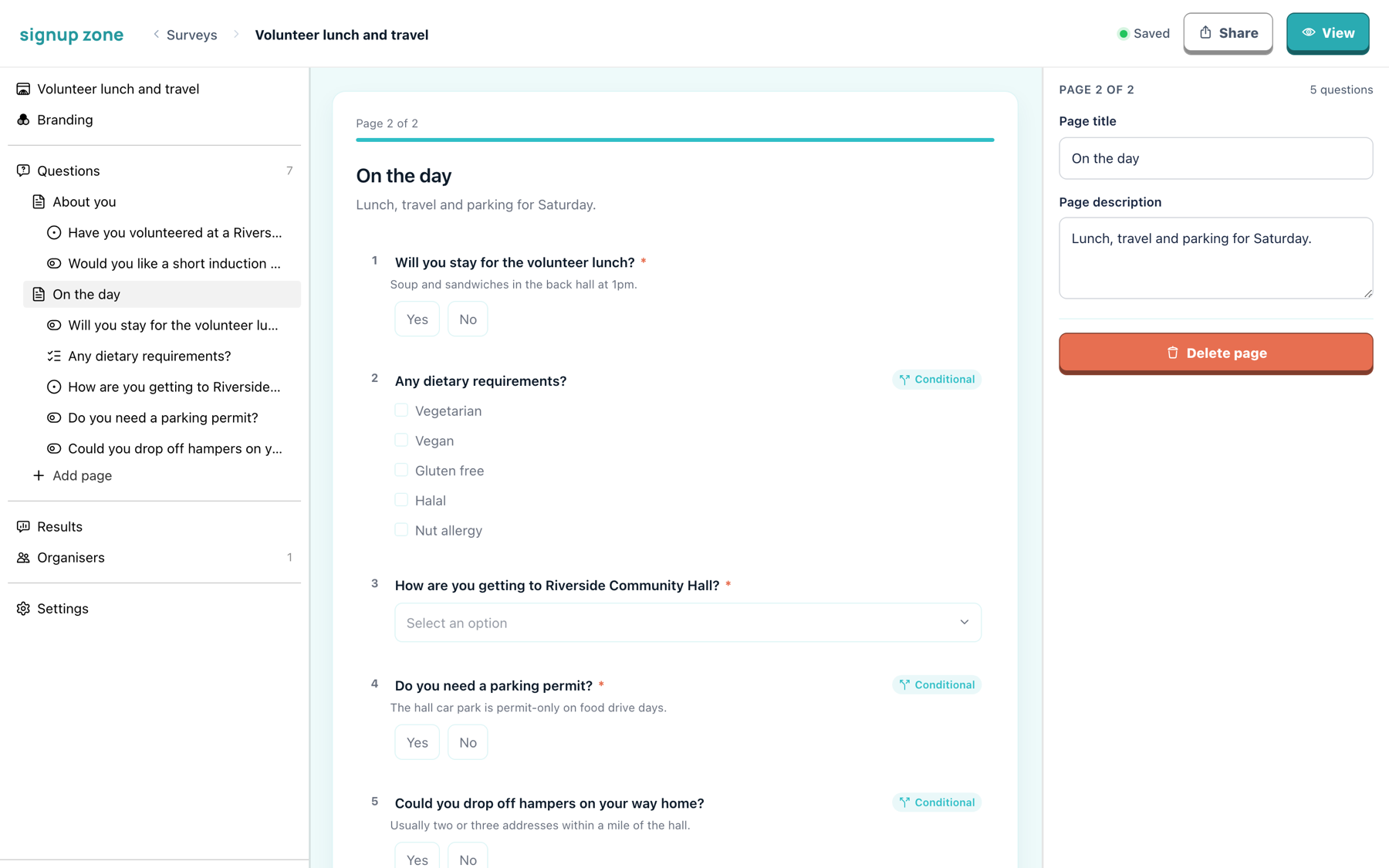
- Click Add page under the last question in the left nav. The new page starts with one question.
- Select the page in the left nav to set its Page title and Page description.
Respondents see Page 1 of 2 and a progress bar, and move between pages with Next and Back. A survey with one page shows none of this.
Question numbers continue across pages: the first question on page 2 follows on from the last on page 1.
To delete a page, open its ⋯ menu in the left nav and choose Delete page, or click Delete page in its settings. This deletes the page's questions and their answers.
When a plan's page limit is reached, Add page shows as Add page — upgrade. Pages already created stay if your plan changes.