Settings and organisers
Settings
Click Settings in the left nav.
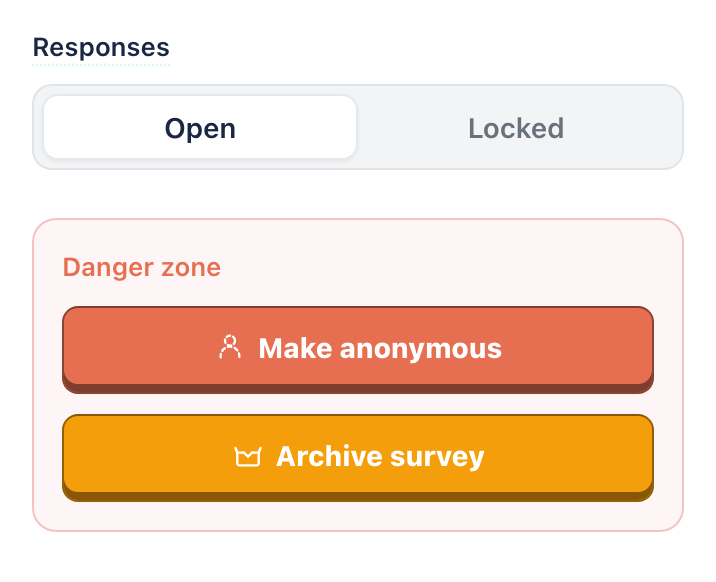
Locking a survey
Set Responses to Locked to stop the survey accepting answers. Respondents see that the survey is locked and cannot submit. Responses already collected stay in Results.
Set it back to Open to accept answers again.
Making responses anonymous
- Click Make anonymous in the Danger zone.
- Confirm.
Every existing and future response loses the name and email of the person who gave it. Settings then shows Responses are anonymous.
This cannot be undone
There is no way to recover who gave which answers. Export the results first if you need them.
Archiving a survey
- Click Archive survey in the Danger zone, or Archive in the survey's ⋯ menu in Surveys.
- Confirm.
An archived survey moves to the bottom of your surveys list and can no longer be edited. Its results stay readable. To stop new responses, lock it first. Click Unarchive survey to bring it back.
Duplicating a survey
In Surveys, open the survey's ⋯ menu and choose Duplicate. The copy opens in the editor.
| Copied | Not copied |
|---|---|
| Questions, pages, conditions, name and description | Responses |
| Theme, cover image and logo | Organisers |
| Custom URL |
Only the survey's owner can duplicate it.
Deleting a survey
In Surveys, open the survey's ⋯ menu and choose Delete, then confirm.
This cannot be undone
The survey and its results are no longer available. Shifts and signups that asked it stop asking it.
Organisers
Organisers can edit the survey and read its results. Available on Basic and Professional.
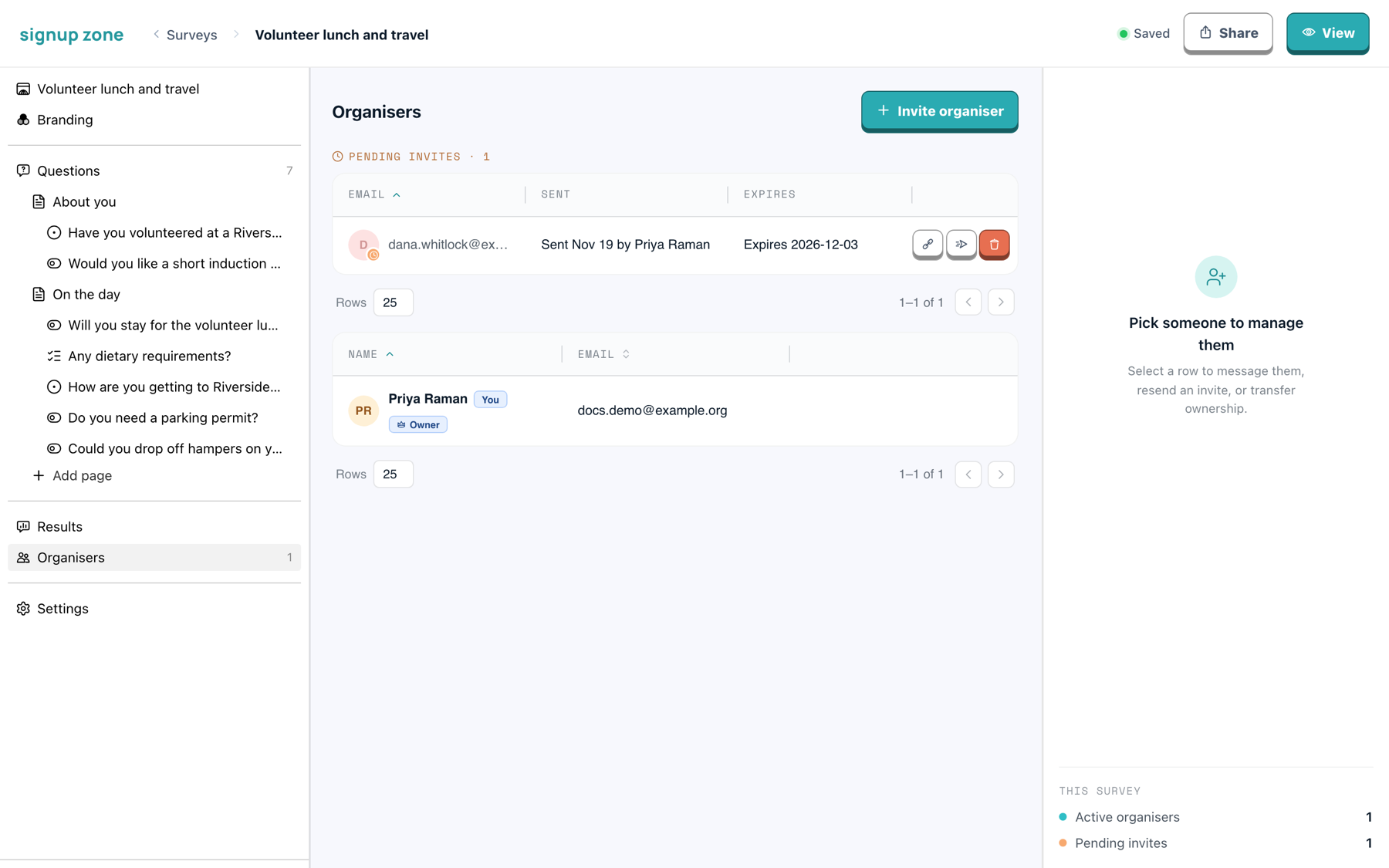
- Click Organisers in the left nav.
- Click Invite organiser.
- Enter one or more email addresses, then click Send invites.
Each person gets an email with a link to accept. Until they do, they appear under Pending invites, with buttons to copy the invite link, resend it, or revoke it.
Only the owner can invite organisers. Organisers cannot be invited or changed on an archived survey.
A survey created from an event or signup starts with that page's organisers.
Changing ownership or removing an organiser
Select an organiser's row, then use the buttons at the end of it:
- Transfer ownership — makes them the owner; you become an organiser. If they are on a lower plan, paid features on the survey may stop working.
- Remove organiser — they lose access to the survey and its responses.
Both ask you to confirm.